Pixelate a face in a video
The classic mosaic censor, tracked automatically. Tap the face, pick Pixelate, and the blocks follow the person through the whole clip.
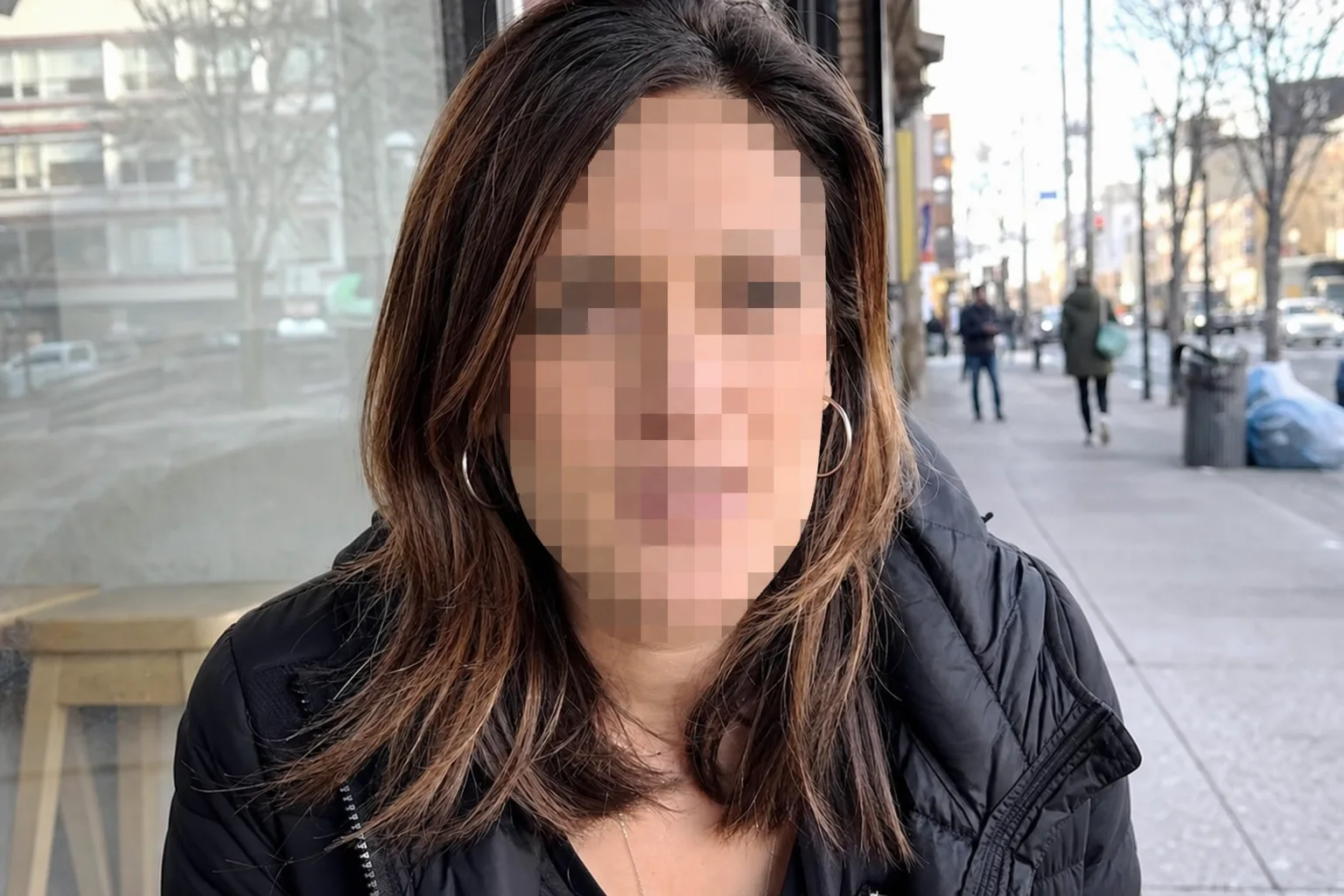
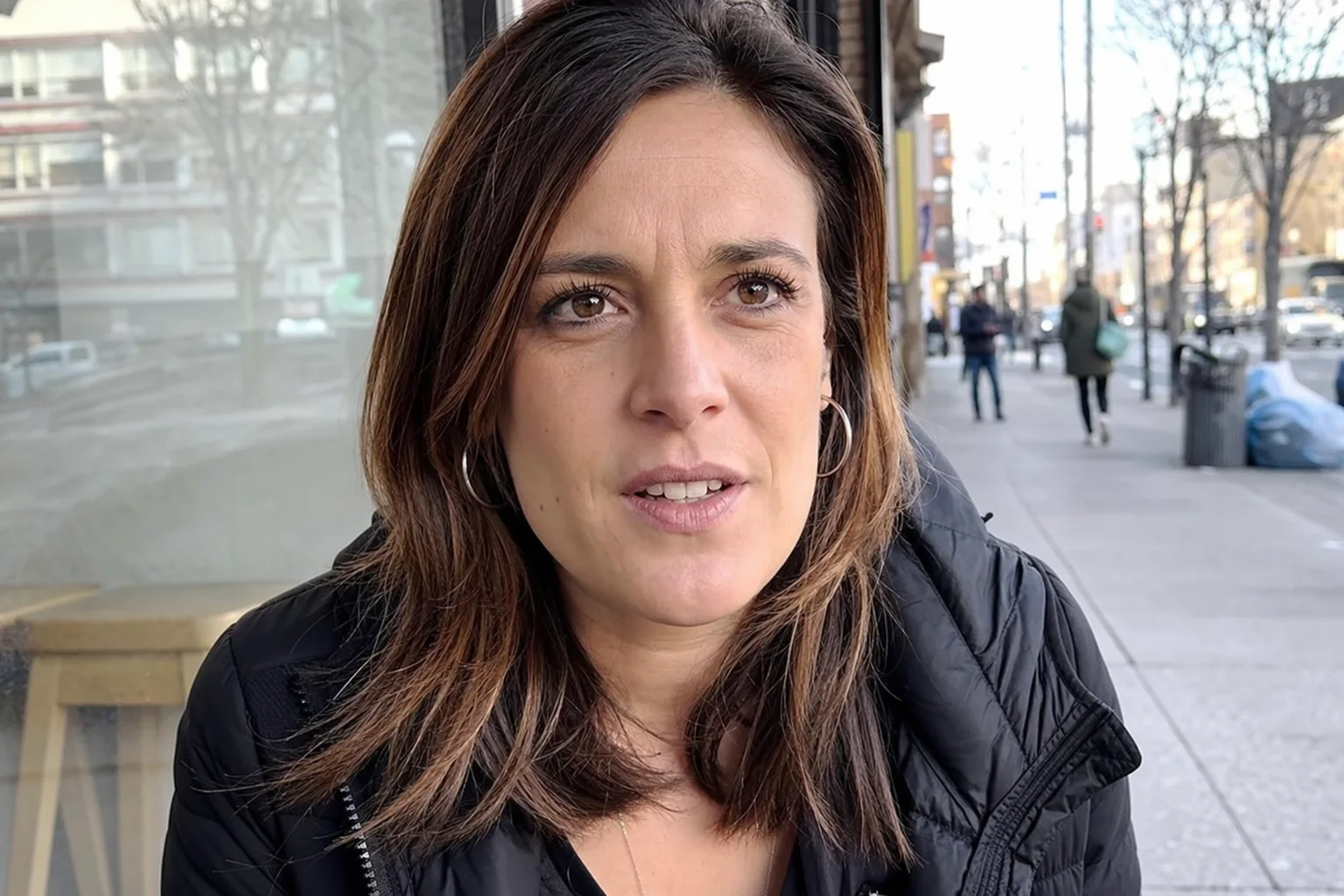
↔
ORIGINALPIXELATEDDRAG TO COMPAREOpen the editor →3 FREE EDITS · NO CARD
How it works
- 1
Drop your video in and tap the face — Alterframe selects the person.
- 2
Switch the effect to Pixelate and set the block size with the strength slider.
- 3
Press Blur to render and download the pixelated MP4.
What people use it for
- The recognizable mosaic look for interviews and documentaries
- Censoring faces where a soft blur reads as too subtle
- Anonymizing people in footage for court or compliance
- Retro news-style face censoring for social clips
Questions
- Pixelate or blur — which hides identity better?
- At comparable strength both defeat casual recognition; pixelation is more visually obvious, which is often what you want — viewers immediately understand something is deliberately censored.
- Can I control how large the pixel blocks are?
- Yes — the strength slider sets the block size live on the preview before you spend anything on a render.
- How much does it cost?
- One credit covers one minute of video, and you get 3 free credits at signup — no card needed. Packs start at $9 for 15 minutes.
- What formats can I upload?
- MP4, MOV, and WebM, up to 5 minutes per video. The result downloads as MP4 with the original audio kept.
- What happens to my video afterwards?
- Your uploads are private to your account. Deleting an edit from your history also deletes the rendered result — and the uploaded video itself once no other edit uses it.
- What if the edit tracks the wrong thing?
- Re-rendering the same video within 24 hours is free (up to 3 fix-it renders per edit), so correcting a track never costs extra credits.
Related tools
Ready when you are — drop a video in, tap what should disappear, and Alterframe does the tracking.
Pixelate a face in a video →