Blur part of a video for YouTube
YouTube Studio's blur only exists after upload, and only on YouTube. Blur the face, plate, or screen in the file itself — tap it once and Alterframe tracks it through the clip.
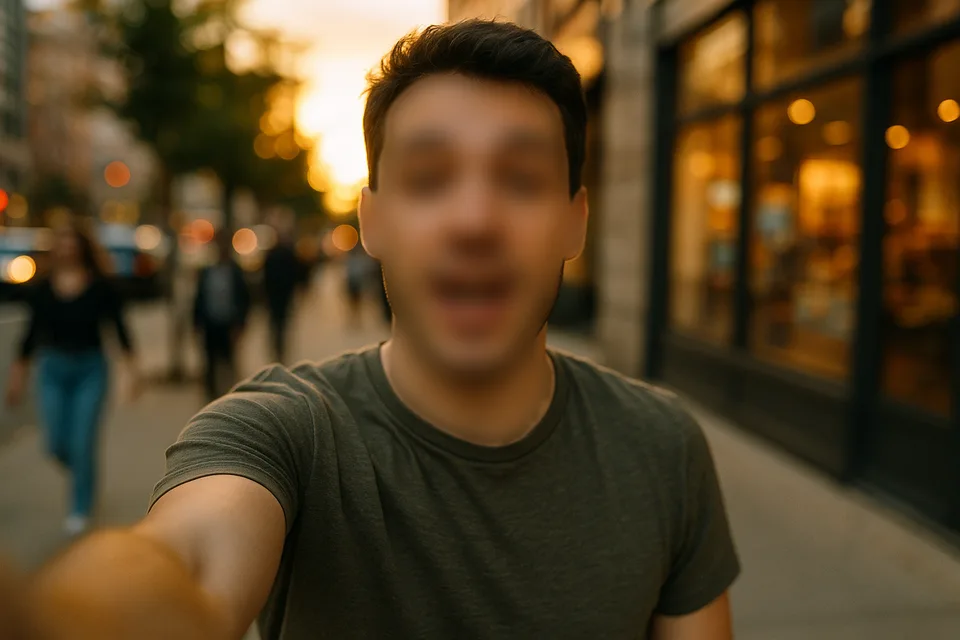
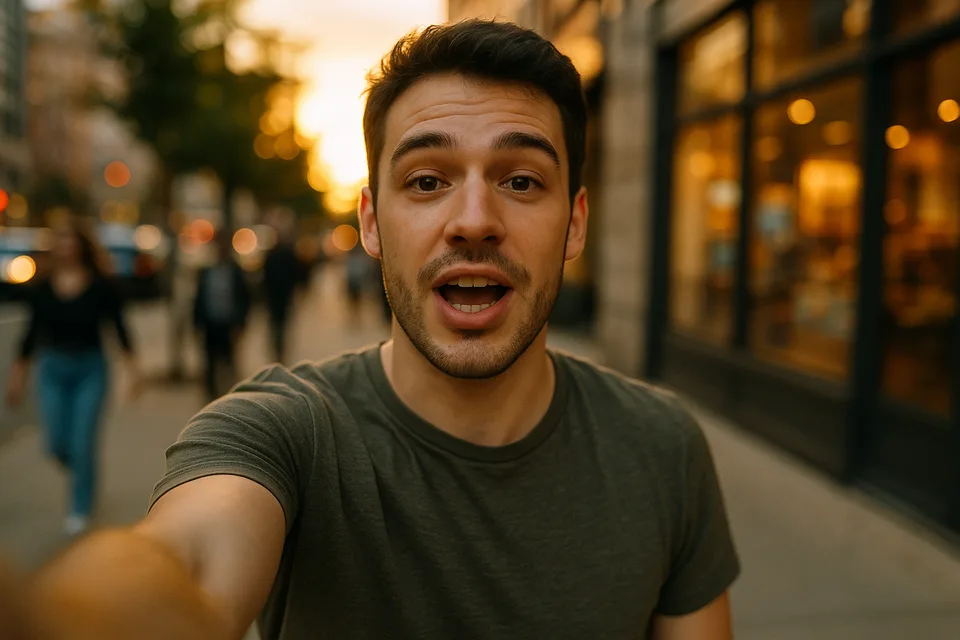
↔
ORIGINALBLURREDDRAG TO COMPAREOpen the editor →3 FREE EDITS · NO CARD
How it works
- 1
Drop your finished cut in before uploading and tap whatever needs hiding — a face, a plate, a screen.
- 2
Choose blur or pixelate and set the strength on the live preview; Alterframe tracks it through every frame.
- 3
Download the rendered MP4 and upload that — the blur travels with the file to every platform.
What people use it for
- Bystanders and passersby in vlogs and street interviews
- Plates and house numbers in driving, moving-day, and room-tour videos
- Screens and logos you don't want flagged in the background
- The same clip cut for Shorts, TikTok, and Reels — blur once, post everywhere
Questions
- Why not just use YouTube's built-in blur?
- YouTube Studio can blur an uploaded video, but custom blur is manual, edits are limited on videos with lots of views, and the blur only lives on YouTube. Baking it into the file gives you one clean master for every platform.
- Will the blur survive YouTube's compression?
- Yes — the effect is rendered into the MP4 before upload, so compression can only make the region less readable, never more. What you see on the preview is what viewers get.
- How much does it cost?
- One credit covers one minute of video, and you get 3 free credits at signup — no card needed. Packs start at $9 for 15 minutes.
- What formats can I upload?
- MP4, MOV, and WebM, up to 5 minutes per video. The result downloads as MP4 with the original audio kept.
- What happens to my video afterwards?
- Your uploads are private to your account. Deleting an edit from your history also deletes the rendered result — and the uploaded video itself once no other edit uses it.
- What if the edit tracks the wrong thing?
- Re-rendering the same video within 24 hours is free (up to 3 fix-it renders per edit), so correcting a track never costs extra credits.
Related tools
- Blur part of a video online
- Blur a face in a video
- Hide your face in a video
- Censor a video online
- Object removal for content creators
Ready when you are — drop a video in, tap what should disappear, and Alterframe does the tracking.
Blur part of a video for YouTube →