Blur a face in a video
Tap the face once — Alterframe tracks it through every frame, turns, and walk-offs, and blurs it in the final render. No keyframing, nothing to install.
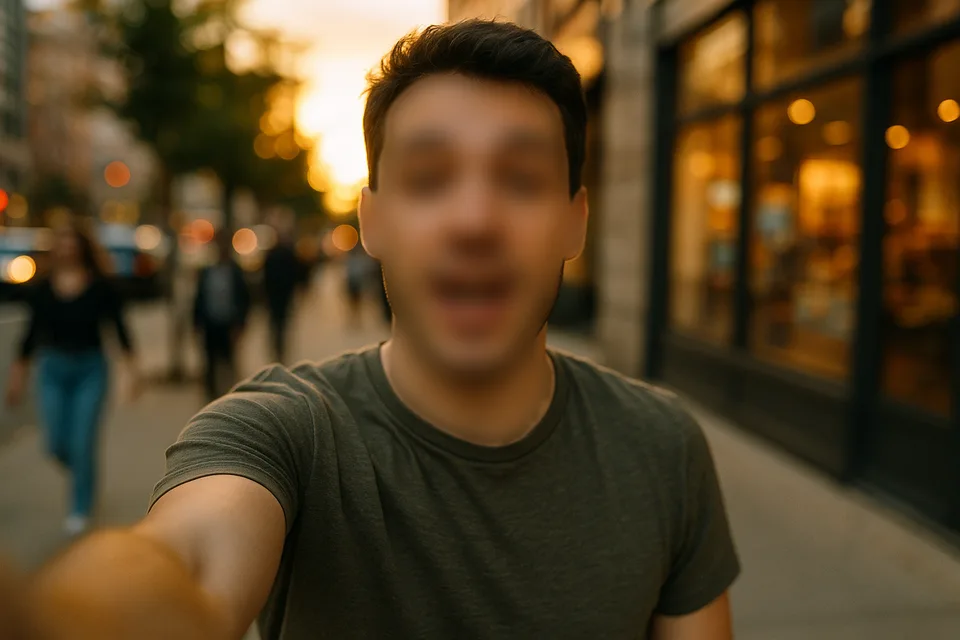
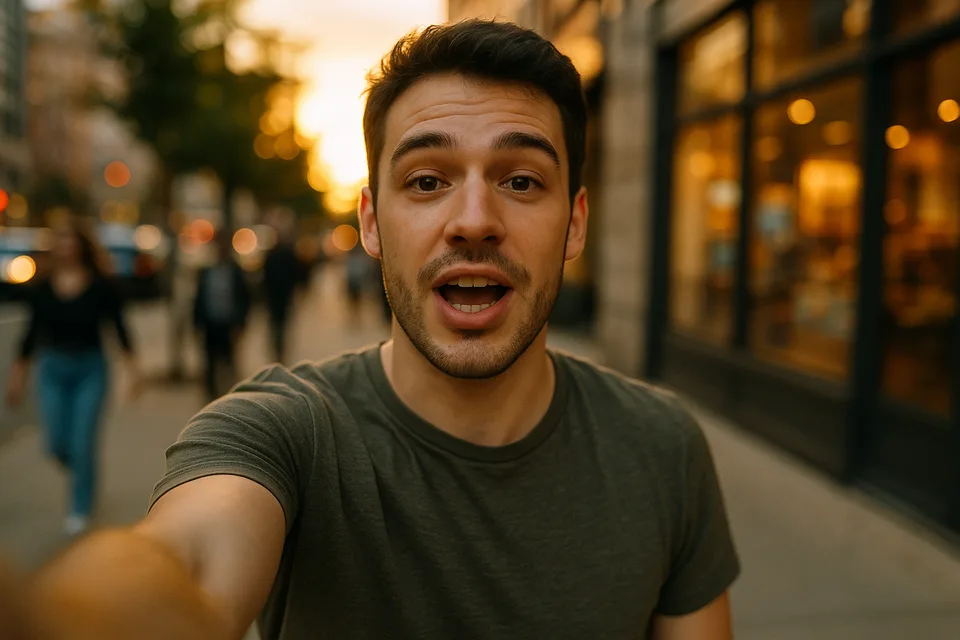
↔
ORIGINALBLURREDDRAG TO COMPAREOpen the editor →3 FREE EDITS · NO CARD
How it works
- 1
Drop your video in the editor and tap the face you want hidden.
- 2
Alterframe segments the person instantly and tracks them across the whole clip — add a second reference tap if they leave and re-enter.
- 3
Press Blur and download the rendered MP4, audio intact.
What people use it for
- Bystanders and strangers in vlogs or street footage
- Children's faces in family clips you post publicly
- Employees or customers in workplace and CCTV video
- Interview subjects who asked to stay anonymous
Questions
- Does the blur follow the face when the person moves?
- Yes — that's the point. You tap once and the segmentation model tracks the person frame-by-frame, through motion, turns, and partial occlusion. If they leave the frame and come back, one extra reference tap re-anchors the track.
- Can I blur more than one face in the same video?
- Yes — up to 4 people per video, each with their own effect and strength. Tap the + button to add another person.
- How much does it cost?
- One credit covers one minute of video, and you get 3 free credits at signup — no card needed. Packs start at $9 for 15 minutes.
- What formats can I upload?
- MP4, MOV, and WebM, up to 5 minutes per video. The result downloads as MP4 with the original audio kept.
- What happens to my video afterwards?
- Your uploads are private to your account. Deleting an edit from your history also deletes the rendered result — and the uploaded video itself once no other edit uses it.
- What if the edit tracks the wrong thing?
- Re-rendering the same video within 24 hours is free (up to 3 fix-it renders per edit), so correcting a track never costs extra credits.
Related tools
- Pixelate a face in a video
- Blur your child's face in a video
- Hide your face in a video
- Blur a face in a photo
Ready when you are — drop a video in, tap what should disappear, and Alterframe does the tracking.
Blur a face in a video →